
Read your script while you record
Use the presenter as your teleprompter, with the current cue, your script under it and the next cue beside it.
Click Record in the editor, or press ⌘R, to open the presenter, with the recorder floating over it. The cue in the middle is what your viewers see. See Record your video.
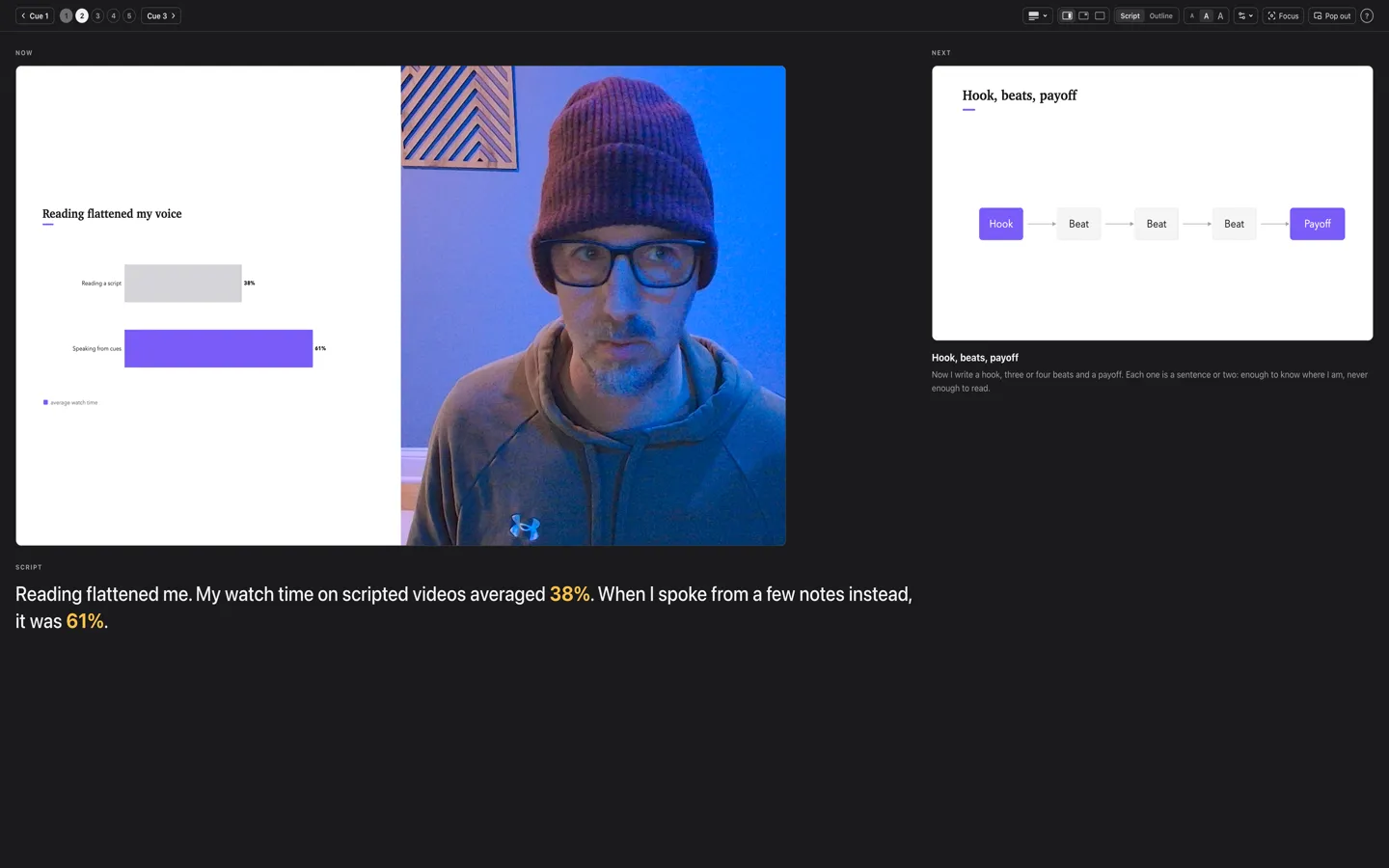
Move between cues
Press → to go to the next cue and ← to go back, or use a presentation clicker. While you record, each move marks where that cue starts in the take.
The dots at the top left are your cues. Click one to jump to it.
Choose what you read
- Script or outline: press O to switch between your full script and your outline. Cue cards covers when bullets work better than a script.
- Text size: press - or =.
- Layout: press L to move the visual and the text around, such as text beside the visual.
- Next cue: press N to show it, make it small or hide it.
The same choices are in the view menu at the top right. Write the text itself in Outline and script your video.
Fit it to your setup
- One display: the presenter opens full screen. Click the Pop out icon at the top right to put it in a window, so you can reach the app you're showing.
- Two displays: it opens on the display the editor isn't on.
- Teleprompter glass: turn on Mirror in the settings menu (the gear), or press M.
- Fewer distractions: press F for Focus, which shows only the cue. Press F again to leave.
Your camera and screen are set in the recorder. See Set up your camera, mic and screen.
Keys
| Key | Action |
|---|---|
| → / ← | Next or previous cue |
| R | Start or stop recording |
| Space | Pause or resume |
| O | Script or outline |
| F | Focus: only the cue |
| Esc | Leave Focus, stop recording, or close the presenter |